How to Add llms.txt to WordPress and Shopify

AI assistants do not reliably discover your best pages the way search engines follow sitemaps. A growing convention is a plain Markdown file at https://yoursite.com/llms.txt: a short, human-readable index of what the site is, which URLs matter, and how they should be cited. It is not a robots.txt clone, not a robots meta replacement, and not a guarantee of ranking in any model.
Readers looking for llms.txt WordPress or llms.txt Shopify usually need one thing: a file that actually answers at the root path after cache, CDN, and theme routing. WordPress often hides the document root behind plugins and permalinks; Shopify serves a locked storefront where you cannot drop arbitrary files unless you use a theme asset, a proxy, or an app. This guide stays on those install paths so crawlers can fetch the map whenever they look.
- llms.txt is a root Markdown citation map for AI crawlers, not a robots.txt or sitemap substitute.
- WordPress: place the file at the web root or expose it via a plugin, rewrite, or static-file plugin so /llms.txt returns 200.
- Shopify: you cannot freely write the document root; use theme, app, or reverse-proxy methods that still serve /llms.txt.
- Keep the file short, accurate, and evergreen—link canonical URLs you actually want cited.
- Verify with a browser and curl after cache; a 404 or HTML theme wrapper means crawlers never see the map.
Prepare llms.txt before you touch WordPress or Shopify
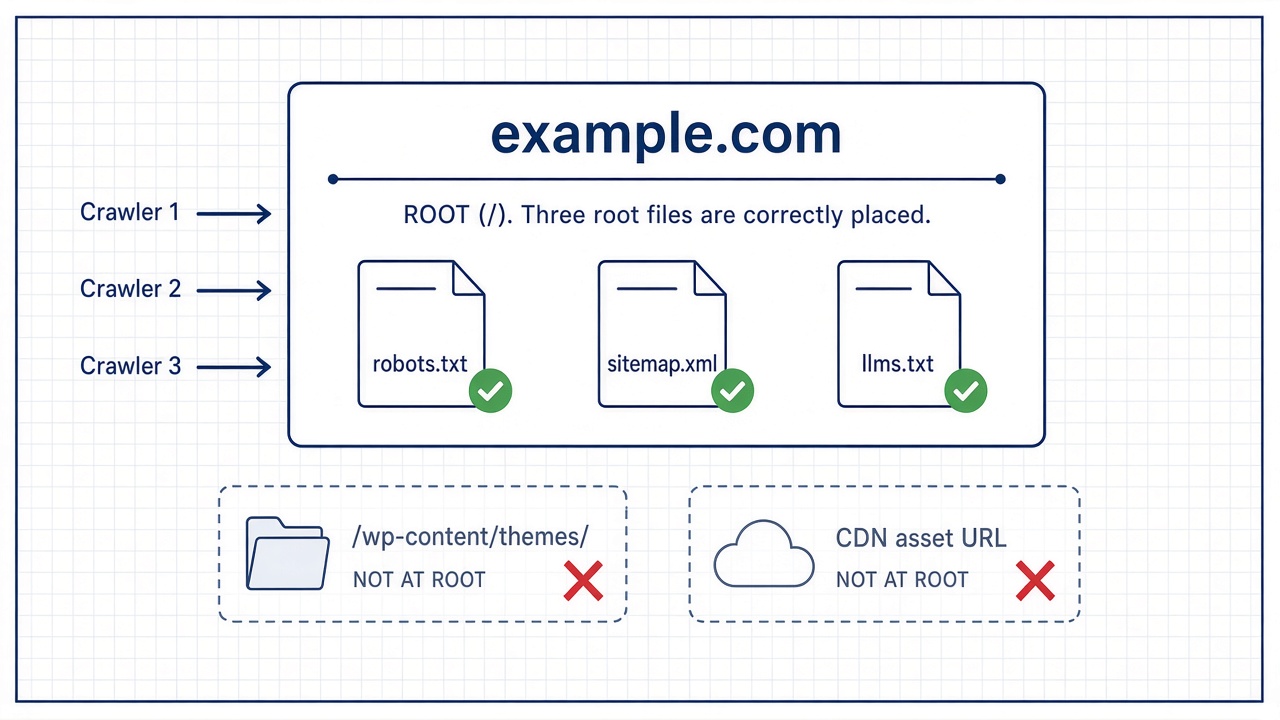
What you ship is not a crawl allow/deny list. It is Markdown that names the pages you want cited: topic clusters, canonical URLs, and a short line of context for each. Think of it as a curated index of your strongest explanations, not a second robots.txt. Finish that file—or generate a first draft and edit it—before you pick a CMS method. Debugging routing and content at the same time is how files get stuck as attachments or theme assets instead of a root document.
If you still need the spec or a generator, use those dedicated guides rather than restating them here. Once the Markdown is ready, WordPress and Shopify each need a durable way to publish it at that exact root URL.
Root first — A finished Markdown map at the real site root is the whole product; the CMS is only how you keep that URL live.
Put llms.txt at the WordPress site root so crawlers can find it
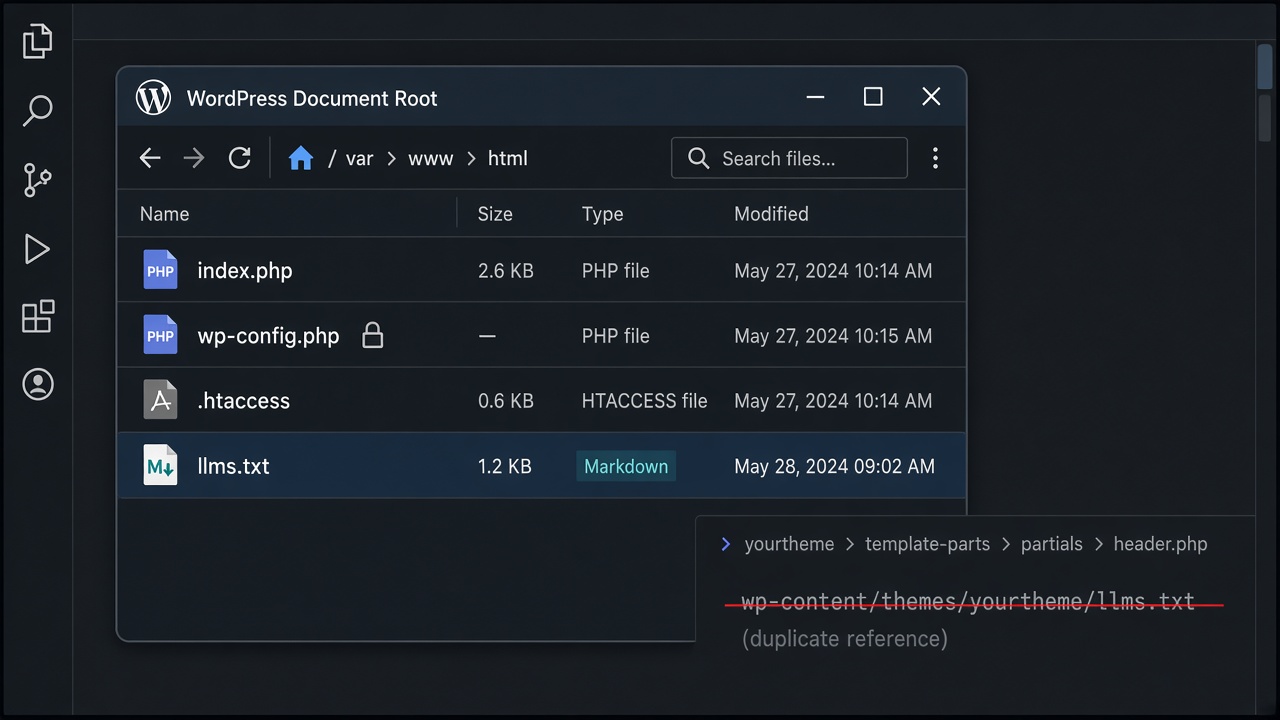
The durable way on WordPress is to place the file on disk next to WordPress itself, not inside a theme or a plugin that invents a pretty permalink.
If a request for /llms.txt still returns a theme layout or a homepage redirect, WordPress is intercepting the path—move the file beside wp-config.php or fix the rewrite so the server serves Markdown before the application boots.
Root, not theme — llms.txt belongs beside wp-config.php (or behind a dedicated rewrite), never as a theme file—and it must stay uncached and unredirected so crawlers hit the real Markdown at the root.
Serve llms.txt at Shopify’s real root URL
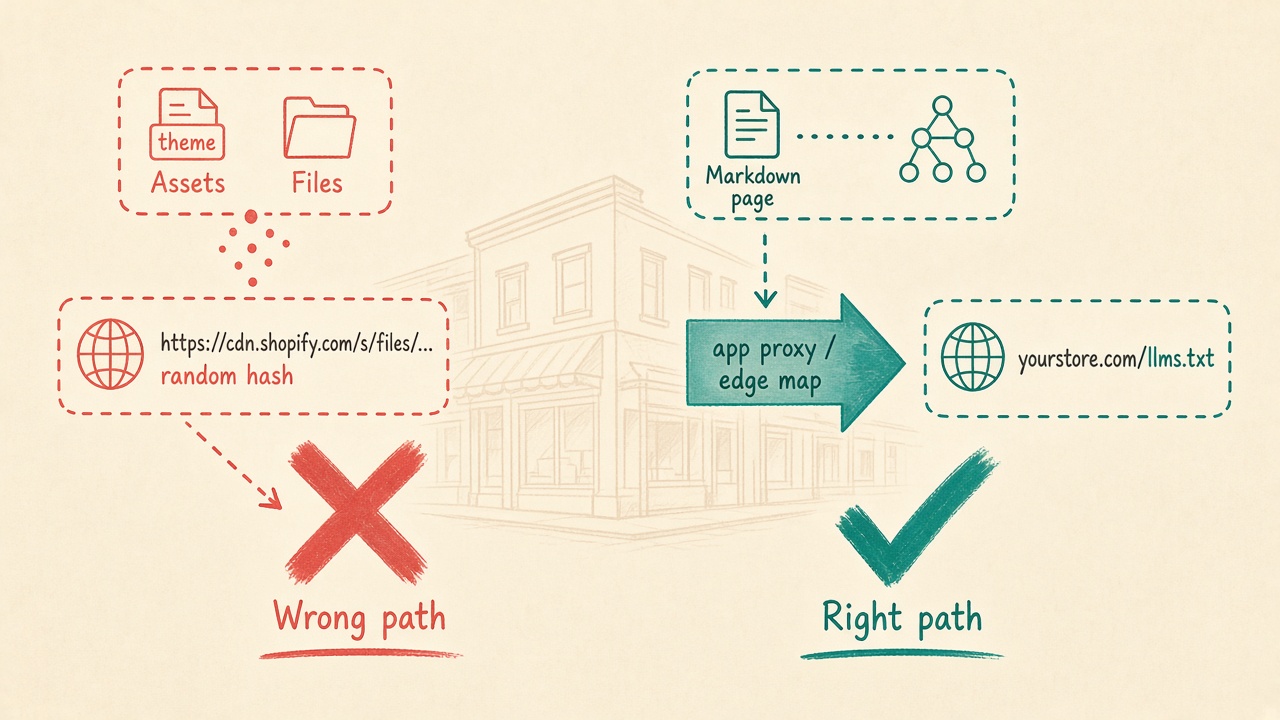
Shopify is a different problem. Online Store admin has no control for dropping a file at the domain root. Theme assets and Files land on Shopify’s CDN, so they never become https://yourstore.com/llms.txt. A page at /pages/llms-txt is the wrong address for crawlers that look for the spec location—do not treat that as done.
You need a durable mapping from the storefront hostname to Markdown, without wrapping it in the theme layout. Three practical paths work: put public/llms.txt in a Hydrogen or other headless app so the origin already serves it; use an app proxy that returns the Markdown body at /llms.txt; or add an edge rewrite (Cloudflare is a common choice) that maps /llms.txt to a hosted Markdown file.
Keep the body Markdown, not a theme page
If you rewrite, preserve the file as written and send a non-HTML content type—text/plain or text/markdown. Liquid layouts, navigation, and checkout chrome must not wrap it. Pick one canonical hostname: your custom domain, not the .myshopify.com host, and serve the file only there so crawlers do not see a duplicate or a redirect chain.
On Shopify, skip theme Files and /pages. Serve Markdown at your custom-domain /llms.txt via headless public files, an app proxy, or an edge rewrite with a non-HTML content type.
Verify the live file and keep the map current
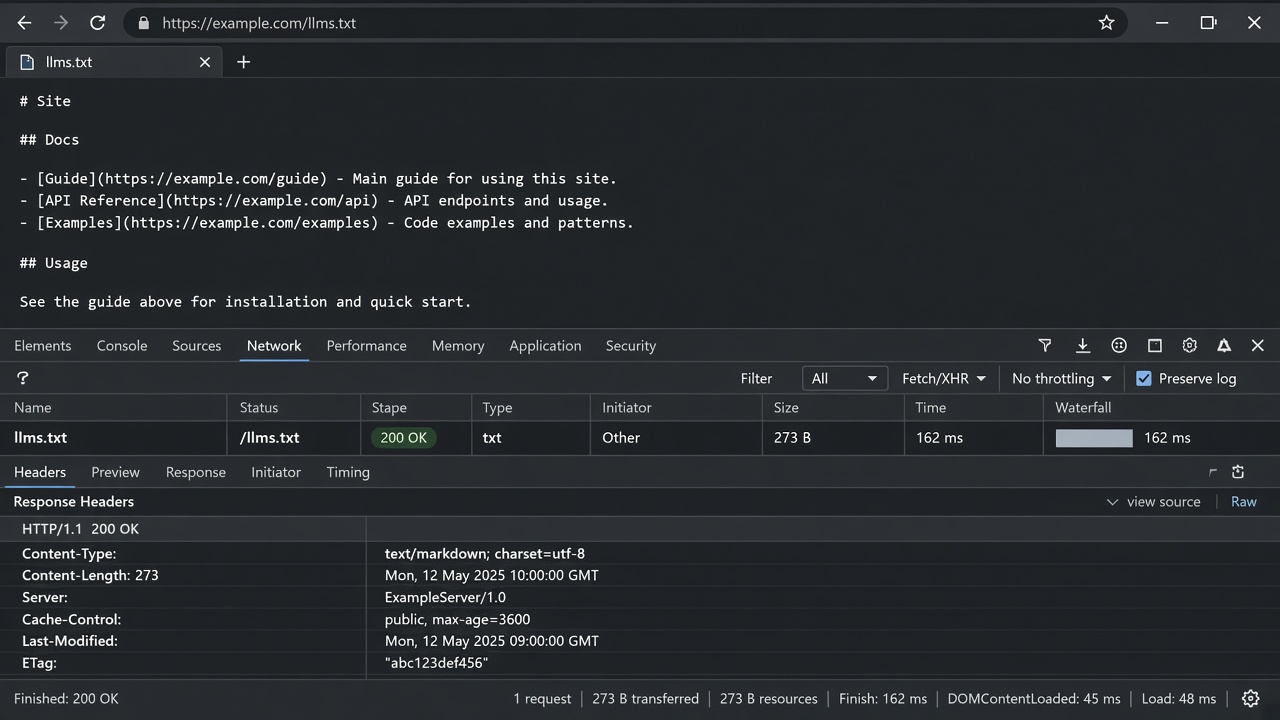
Once the file is on the real root—whether you dropped it next to WordPress’s index.php or reached Shopify through a proxy or edge rewrite—open /llms.txt in a private window. You want a 200, Markdown in the body, and nothing else: no theme chrome, no storefront shell, no login wall. If the browser paints a page, crawlers will too.
Then look at the response itself. The content type should not be text/html. There should be no silent hop to the homepage. The URL should be HTTPS on the same host you treat as canonical—www or apex, matching the rest of the site—not a CDN alias or a .myshopify.com origin.
Re-check after anything that can rewrite the edge: WordPress cache or security plugins, a Shopify theme publish, a CDN purge. Those layers are why a file that worked at deploy time can later 404, HTML-wrap, or redirect. Treat llms.txt as an operator artifact, not a one-time upload. When you add a content cluster or change permalinks, regenerate the Markdown and ship it the same way you first put it at the root.
The file does not replace XML sitemaps or the quality of the pages it lists. It only points answer engines at the URLs you already want cited. If those URLs are thin, blocked, or outdated, a perfect root map will not fix them.
Keep it live — A crawlable root map only works if it stays Markdown at 200 on the canonical host—and you redeploy it whenever the URLs it describes change.
Key Takeaways
Finish your llms.txt map, publish it at the live root on WordPress or Shopify, then confirm the URL in a private window before you scale more content.